Tech PD
  • Home
  • The TechPD Blog
  • Tech PD Newsletter
  • 21st Century Education
  • Assessment w/ Tech Tools
    • Edulastic
    • Formative
    • Kahoot
    • Orange Slice Teacher Rubric
  • Beginning of the Year ~ Tech PD
  • Blogging
  • Brain Pop/ Brain Pop Jr.
  • Compass Learning
    • Compass for Teachers
    • Compass with Students
    • Compass at Home
    • Compass on a Mobile Device
    • Compass Tips & Tricks
    • Compass Troubleshooting
  • Explain Everything App
  • Filr
    • Filr ~ On an IOs device
  • Genius Hour
  • Going-Google
    • Going Google Survey
    • for Office Personnel
    • for Support Staff
  • Google Calendar
  • Google Chrome
    • Read Write Toolbar for Chrome
  • Google Classroom
  • Google Drive
  • Google Docs
  • Google Forms
    • Google Forms - Question Types
    • Forms & Flubaroo
    • Forms & AutoCrat
  • Google Hangout
  • Google Search
  • Google Sheets
  • Google Sites
  • Google Slides
  • HyperDocs
  • Informational Text Sources
  • Ipads in the Classroom
  • ISTE Standards for Students
  • Keyboarding Resources
  • New Teacher Training
  • (PLN) Personal Learning Network
  • Read Write Toolbar for Chrome
  • SAMR Model of Tech. Integration
  • Student Centered Technology Models
    • Blended Learning Model
    • Flipped Classroom
    • Personalized Learning Model (w/ tech.)
  • Tech to Improve Learning
  • Tech Time Playdates
    • BrainPop Playdate
    • Compass Playdate
    • Discovery Ed Playdate
    • Google Forms Playdate
    • Google Keep Playdate
    • Google Slides Playdate
    • Nearpod Playdate
  • Tech Tools Demo Slam
  • Twitter
    • Twitter ~ Getting Started
    • Twitter ~ What to Follow
    • Twitter Chats
    • More Twitter
    • Twitter in the Classroom
    • Twitter for Professional Learning
  • Video in the Classroom
  • Weebly
  • Word Clouds
  • YouTube
    • Youtube~ A PLN Tool
    • Why?? YouTube in the Classroom
    • Create a YouTube Playlist
    • Remove the YouTube Clutter
    • Tools that work with YouTube
    • Uploading to YouTube from an iDevice
    • Create ScreenCasts and Upload to YouTube
  • Home
  • The TechPD Blog
  • Tech PD Newsletter
  • 21st Century Education
  • Assessment w/ Tech Tools
    • Edulastic
    • Formative
    • Kahoot
    • Orange Slice Teacher Rubric
  • Beginning of the Year ~ Tech PD
  • Blogging
  • Brain Pop/ Brain Pop Jr.
  • Compass Learning
    • Compass for Teachers
    • Compass with Students
    • Compass at Home
    • Compass on a Mobile Device
    • Compass Tips & Tricks
    • Compass Troubleshooting
  • Explain Everything App
  • Filr
    • Filr ~ On an IOs device
  • Genius Hour
  • Going-Google
    • Going Google Survey
    • for Office Personnel
    • for Support Staff
  • Google Calendar
  • Google Chrome
    • Read Write Toolbar for Chrome
  • Google Classroom
  • Google Drive
  • Google Docs
  • Google Forms
    • Google Forms - Question Types
    • Forms & Flubaroo
    • Forms & AutoCrat
  • Google Hangout
  • Google Search
  • Google Sheets
  • Google Sites
  • Google Slides
  • HyperDocs
  • Informational Text Sources
  • Ipads in the Classroom
  • ISTE Standards for Students
  • Keyboarding Resources
  • New Teacher Training
  • (PLN) Personal Learning Network
  • Read Write Toolbar for Chrome
  • SAMR Model of Tech. Integration
  • Student Centered Technology Models
    • Blended Learning Model
    • Flipped Classroom
    • Personalized Learning Model (w/ tech.)
  • Tech to Improve Learning
  • Tech Time Playdates
    • BrainPop Playdate
    • Compass Playdate
    • Discovery Ed Playdate
    • Google Forms Playdate
    • Google Keep Playdate
    • Google Slides Playdate
    • Nearpod Playdate
  • Tech Tools Demo Slam
  • Twitter
    • Twitter ~ Getting Started
    • Twitter ~ What to Follow
    • Twitter Chats
    • More Twitter
    • Twitter in the Classroom
    • Twitter for Professional Learning
  • Video in the Classroom
  • Weebly
  • Word Clouds
  • YouTube
    • Youtube~ A PLN Tool
    • Why?? YouTube in the Classroom
    • Create a YouTube Playlist
    • Remove the YouTube Clutter
    • Tools that work with YouTube
    • Uploading to YouTube from an iDevice
    • Create ScreenCasts and Upload to YouTube

Troubleshooting Compass Activities

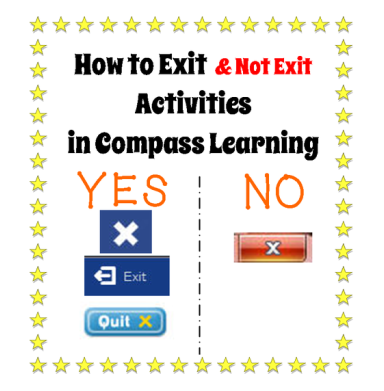
Are you exiting Compass Activities the correct way?
Picture
Here is what Compass Suggests:
  • When exiting a learning activity as a student, to ensure that you can continue progress – use the built-in Exit button (usually on the upper left within the activity) and never close out using the X on the browser in the upper right corner.  For completion of the activity, use the icons or indicators within the activity or let the activity close on its own upon completion.
  • While using CompassLearning solutions, do not use the browser's Back and Forward buttons,  To navigate back and forth, use the breadcrumb buttons located near the top of the student desktop.
  • When the student is done using CompassLearning for that session, they can perform a logout via the Logout button on the upper right section of the student desktop, instead of closing the browser.

How do my students get past Practice Resources/ Worksheets that are part of their learning path?
Picture
Picture
Here is what Compass Suggests:
​Q:
 My district or school doesn’t use Practice Resources/Worksheets (or Performance/Authentic Tasks), but they are in our learning paths.  How can my students bypass those?
​

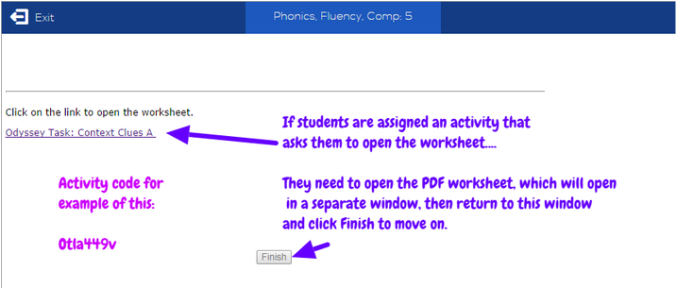
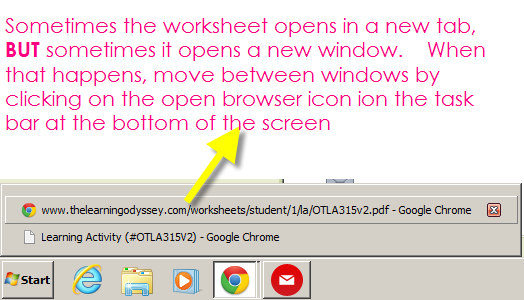
A: Have the students launch the activity, click the link(s) and minimize the new screen(s) that pop up.  Once minimized, click Finish.  These type of activities are enrichment activities and have no score in the Compass Learning program.  The information is not needed for passing any quizzes or chapter tests.

My students are saying that they have already done this activity.  Why is a student having to repeat an activity in Compass?
Picture
Compass Learning Paths now have decision points set to some of the activities/quizzes.  This means that there are success criteria built into the activities.  While this has some positive effects, it can cause frustration for students.

For NWEA learning paths, there are pre-determined Decision Points. These decision points are on all of the lesson quizzes/activity quizzes. Generally with these activities, the student must reach a mastery score of 70% to be able to move on. If they score below 70% they get an additional 2 chances to make up that quiz. If after 3 times, they still get below 70%, it may allow them to go on to the next activity.


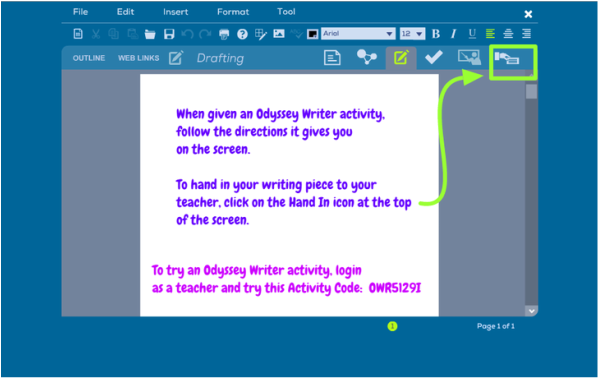
My student has Odyssey Writer activities in their learning path.  How can students pass them and move on to other activities?
Picture
Here is what Compass Suggests:
Q: My district or school doesn’t use Compass Writers, but they are in our learning paths.  How can my students bypass those?
​

A: Have the students launch the activity, close the instructional prompt and type "Not required" (or something similar) then click the Hand-In icon (looks like a hand holding a sheet of paper) in the upper right portion of the screen.  They will be able to continue to the next activity.  These activities have no numerical score and are not a factor for average score in an assignment

How can I re-assign an assignment that a student may have already started or completed?
Option 1:  If you know the Activity Code for that particular assignment, the student could type that code into the Activity Code search bar on their Compass Learning home screen.  

Option 2: 
  1. Login to your teacher account, Click Courses & Assignments > Assignment Archive.
  2. Via the filters on the left-hand side, search for the EXACT assignment you want to re-assign.
  3. Once you have located the assignment, select it and click the button that says 'Open a Copy'.
  4. You will be taken to the Assignment Builder Outline landing page.
  5. You will need to rename this assignment, adding the word “copy”, “redo”, “or “retake” to the end is an easy way to differentiate    between the original and the copy.
  6. Once renamed, click 'Complete Assignment'.  A dialogue box will appear prompting you to categorize your assignment, make any necessary changes and if it all looks good, click 'Next'
  7. Select a class or classes or individual students to whom you want to assign the assignment copy
  8. Click Finish

  • Home
  • The TechPD Blog
  • Tech PD Newsletter
  • 21st Century Education
  • Assessment w/ Tech Tools
    • Edulastic
    • Formative
    • Kahoot
    • Orange Slice Teacher Rubric
  • Beginning of the Year ~ Tech PD
  • Blogging
  • Brain Pop/ Brain Pop Jr.
  • Compass Learning
    • Compass for Teachers
    • Compass with Students
    • Compass at Home
    • Compass on a Mobile Device
    • Compass Tips & Tricks
    • Compass Troubleshooting
  • Explain Everything App
  • Filr
    • Filr ~ On an IOs device
  • Genius Hour
  • Going-Google
    • Going Google Survey
    • for Office Personnel
    • for Support Staff
  • Google Calendar
  • Google Chrome
    • Read Write Toolbar for Chrome
  • Google Classroom
  • Google Drive
  • Google Docs
  • Google Forms
    • Google Forms - Question Types
    • Forms & Flubaroo
    • Forms & AutoCrat
  • Google Hangout
  • Google Search
  • Google Sheets
  • Google Sites
  • Google Slides
  • HyperDocs
  • Informational Text Sources
  • Ipads in the Classroom
  • ISTE Standards for Students
  • Keyboarding Resources
  • New Teacher Training
  • (PLN) Personal Learning Network
  • Read Write Toolbar for Chrome
  • SAMR Model of Tech. Integration
  • Student Centered Technology Models
    • Blended Learning Model
    • Flipped Classroom
    • Personalized Learning Model (w/ tech.)
  • Tech to Improve Learning
  • Tech Time Playdates
    • BrainPop Playdate
    • Compass Playdate
    • Discovery Ed Playdate
    • Google Forms Playdate
    • Google Keep Playdate
    • Google Slides Playdate
    • Nearpod Playdate
  • Tech Tools Demo Slam
  • Twitter
    • Twitter ~ Getting Started
    • Twitter ~ What to Follow
    • Twitter Chats
    • More Twitter
    • Twitter in the Classroom
    • Twitter for Professional Learning
  • Video in the Classroom
  • Weebly
  • Word Clouds
  • YouTube
    • Youtube~ A PLN Tool
    • Why?? YouTube in the Classroom
    • Create a YouTube Playlist
    • Remove the YouTube Clutter
    • Tools that work with YouTube
    • Uploading to YouTube from an iDevice
    • Create ScreenCasts and Upload to YouTube